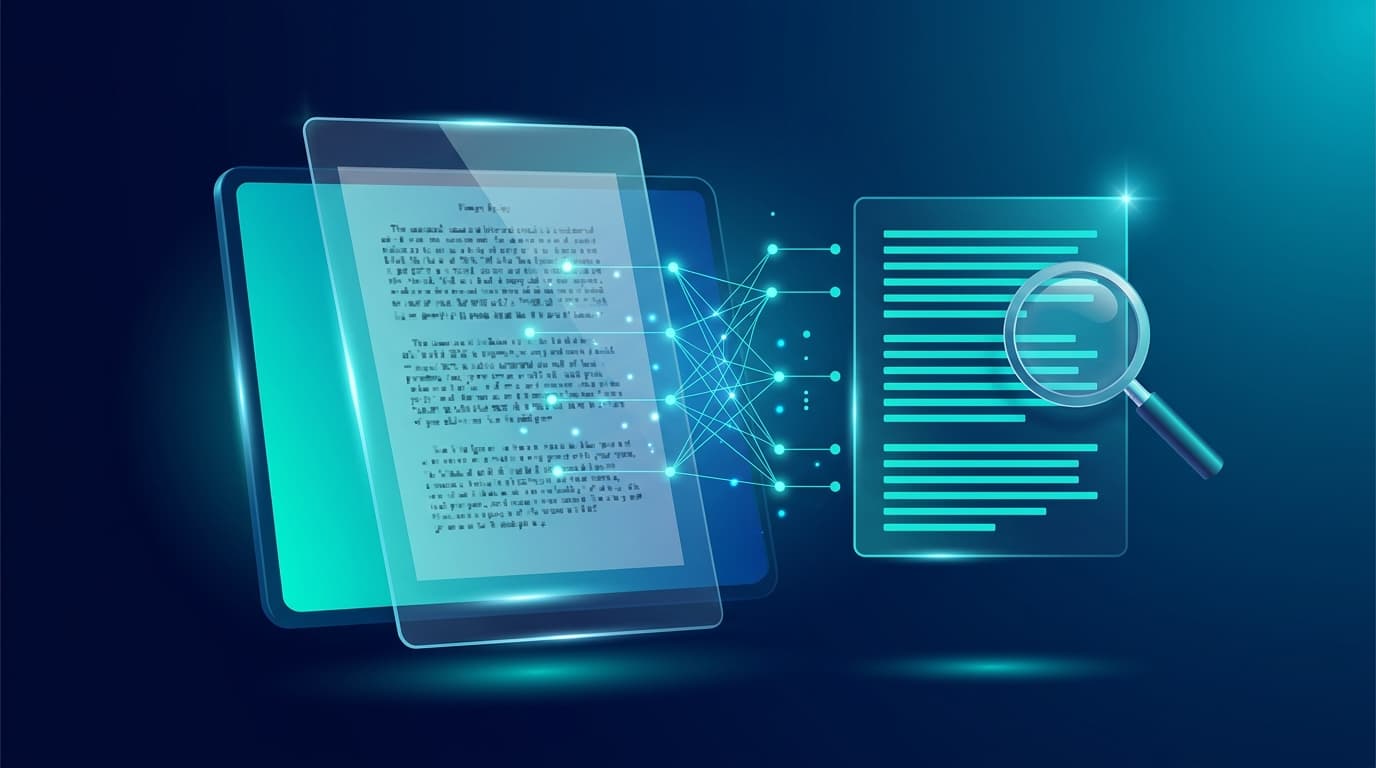
A scanned PDF is essentially a collection of flat images trapped inside a PDF container — you cannot search, highlight, copy, or edit any of the text inside it. Optical Character Recognition (OCR) is the AI-powered technology that analyzes the pixel patterns of scanned characters, identifies each letter, and embeds an invisible, fully searchable text layer directly into the PDF. This comprehensive 2026 guide walks you through the best free methods to make any scanned PDF searchable in minutes.
What Is a "Scanned PDF" and Why Can't You Search It?
When a physical document is digitized through a flatbed scanner, an automatic document feeder (ADF), or even a phone camera app like CamScanner or Adobe Scan, the resulting PDF file contains only rasterized image data — not actual text characters. This means:
- Ctrl+F / ⌘+F Doesn't Work: The built-in PDF search function returns zero results because there is no underlying text layer to query against.
- Copy & Paste Is Impossible: Attempting to select and copy text from a scanned PDF yields nothing, or at best, garbled fragments.
- Screen Readers Cannot Parse It: Assistive technologies for visually impaired users cannot read the document, making it ADA/WCAG non-compliant.
- File Sizes Are Bloated: Image-based PDFs are often 5-20x larger than their text-based equivalents because every page is stored as a high-resolution bitmap.
OCR (Optical Character Recognition) solves all of these problems by using trained machine learning models to detect character boundaries, recognize letterforms across hundreds of scripts, and generate a transparent text overlay that sits perfectly aligned on top of the original scanned image.
Method 1: Free PDF Combine OCR Tool (Fastest, Private & Free)
Most online OCR services require you to upload sensitive scanned documents — legal contracts, medical records, tax returns — to their remote servers. Free PDF Combine's OCR tool uses Tesseract.js, the industry-standard open-source OCR engine compiled to WebAssembly, to process your scanned pages entirely inside your browser's local RAM. Your files never leave your device.
Step-by-Step: Make a Scanned PDF Searchable in Your Browser
- Open the Free PDF Combine OCR Tool.
- Drag and drop your scanned PDF into the upload zone (or click to browse your files). There are no file size limits and no daily usage caps.
- Select the primary language of the scanned text from the dropdown menu. The tool supports 12+ languages including English, Spanish, French, German, Arabic, Chinese, Japanese, Korean, and Hindi.
- Click "Extract Text (OCR)". The AI engine will analyze each page, detect text regions, and extract all recognized characters.
- Review the extracted text in the results panel. You can copy to clipboard or download as a .txt file instantly.
Zero-Upload Privacy Guarantee: Because Tesseract.js runs as a WebAssembly module inside your browser tab, your scanned document bytes never transit across the internet. No cloud servers, no temporary file caching, no data retention policies to worry about. This makes it ideal for OCR processing of medical records (HIPAA), legal discovery packets, tax filings, and classified internal memos.
Method 2: Adobe Acrobat Pro (Paid Desktop Software)
Adobe Acrobat Pro DC remains the industry-standard desktop OCR solution used by enterprise legal and publishing teams. However, it requires a paid subscription ($239.88/year or $22.99/month) and installs over 1.5 GB of software on your hard drive.
- Open Adobe Acrobat Pro and select File → Open to load your scanned PDF document.
- Click "Scan & OCR" in the right-side toolbar panel (or navigate to Tools → Enhance Scans).
- Click "Recognize Text" and choose "In This File" from the dropdown.
- Under Settings, select the language of the scanned text and choose an output style:
- Searchable Image: Places invisible text behind the original scan (preserves exact appearance).
- Editable Text and Images: Attempts to reconstruct the document as editable content (less accurate).
- Click "Recognize Text" and save the searchable PDF with File → Save As.
Limitation: Adobe Acrobat Pro requires a paid subscription and syncs document metadata to Adobe's cloud infrastructure by default. If you are processing confidential legal or medical files, verify your organization's data handling policies before using Adobe Cloud Services.
Method 3: Google Drive (Free Cloud OCR via Google Docs)
Google Drive includes a little-known built-in OCR capability that activates automatically when you open a scanned PDF with Google Docs:
- Upload your scanned PDF to Google Drive (drive.google.com).
- Right-click the uploaded file → select "Open with" → "Google Docs".
- Google's servers will process the scanned images and attempt to extract all text, inserting it into a new Google Docs document below the original images.
- Review and edit the extracted text. Download the result as a Word document or copy the text to your clipboard.
Privacy Trade-Off: Google Drive OCR uploads your entire scanned document to Google's cloud servers for processing. Google's Terms of Service grant them the right to analyze uploaded content for service improvement. This method is not recommended for sensitive documents containing financial data, medical records, attorney-client privileged material, or personally identifiable information (PII).
For confidential documents, use a client-side tool like Free PDF Combine OCR where files never leave your device.
Comparison: Scanned PDF to Searchable Text Methods
| Method | Cost | Privacy Level | Languages | Software Required | Best For |
|---|---|---|---|---|---|
| Free PDF Combine OCR | 100% Free | 100% Local (Zero Uploads) | 12+ Languages | None (Browser) | Confidential docs, any device |
| Adobe Acrobat Pro | $239/year | Local + Cloud Sync | 30+ Languages | Desktop Install (1.5 GB) | Enterprise publishing |
| Google Drive / Docs | Free | Cloud Upload Required | 200+ Languages | Google Account | Non-sensitive quick OCR |
| ABBYY FineReader | $199 one-time | 100% Local | 190+ Languages | Desktop Install (800 MB) | High-volume batch OCR |
When Do You Need to Make a PDF Searchable?
OCR processing is essential across dozens of professional and personal workflows. Here are the most common real-world scenarios:
Legal & Compliance
Law firms receive thousands of pages of scanned discovery documents, court filings, and witness depositions. Making these PDFs searchable with OCR allows attorneys to use Ctrl+F to instantly locate critical terms, dates, and names across hundreds of pages.
Academic Research
Students and researchers frequently digitize book chapters, journal articles, and archival documents from library scanners. OCR transforms these flat scans into searchable, citable text that can be highlighted, annotated, and referenced in papers.
Financial & Tax Documents
Accountants and bookkeepers receive scanned bank statements, invoices, and W-2 forms that need to be searchable for audit trails. OCR enables keyword-based retrieval during tax season, reducing manual page-flipping by 90%.
Accessibility Compliance
Government agencies and educational institutions are required by ADA Section 508 and WCAG 2.1 AA guidelines to provide accessible digital documents. OCR enables screen readers (JAWS, NVDA, VoiceOver) to parse and vocalize the document content for users with visual impairments.
How Does Browser-Based OCR Work? (Technical Deep Dive)
Free PDF Combine's OCR tool leverages Tesseract.js v5, the JavaScript/WebAssembly port of Google's open-source Tesseract OCR engine (originally developed at HP Labs in 1985 and maintained by Google since 2006). Here's what happens under the hood:
- PDF Page Rasterization: Each page of your scanned PDF is rendered as a high-resolution bitmap (canvas image) using the browser's built-in PDF rendering pipeline.
- Image Pre-Processing: The bitmap undergoes adaptive thresholding, deskewing, and noise reduction to maximize character recognition accuracy.
- LSTM Neural Network Recognition: Tesseract's Long Short-Term Memory (LSTM) neural network model scans the processed image in horizontal strips, detecting character boundaries and classifying each glyph against its trained language dataset.
- Text Layer Generation: The recognized characters are assembled into words, lines, and paragraphs with spatial coordinates matching their original positions on the scanned page.
- Output Delivery: The extracted text is presented in the browser for immediate copy/download — all without any data ever leaving your device.
Tips for Better OCR Accuracy
- Use 300 DPI or higher: When scanning physical documents, use a minimum resolution of 300 DPI (dots per inch). Lower resolutions produce blurry character edges that reduce OCR accuracy significantly.
- Ensure good contrast: Black text on a white background produces the highest accuracy rates. Colored paper, faded ink, and pencil annotations reduce recognition quality.
- Straighten crooked scans: Skewed or rotated pages confuse the OCR engine's line-detection algorithm. Use the Free PDF Rotate Tool to fix orientation before running OCR.
- Select the correct language: Always choose the primary language of the document. Multi-language documents may require multiple OCR passes.
- Clean the scanner glass: Dust, fingerprints, and smudges on the scanner bed create artifacts that the OCR engine may misinterpret as punctuation or stray characters.
Frequently Asked Questions
What does "making a PDF searchable" actually mean?
It means adding an invisible text layer on top of the scanned image pages so that PDF readers can index the content. After OCR processing, you can use Ctrl+F to find specific words, copy text to your clipboard, and allow screen readers to vocalize the document content. The visual appearance of the original scan remains unchanged.
Is my scanned document uploaded to a server?
Not with Free PDF Combine. Our OCR tool runs entirely inside your browser using Tesseract.js WebAssembly. Your scanned file bytes never leave your device's RAM. This is fundamentally different from cloud OCR services like Adobe Cloud, ABBYY Cloud, or Google Drive, which require full file uploads to remote servers.
Can I OCR a multi-page scanned PDF for free?
Yes. Free PDF Combine has no page limits, no daily usage caps, and no file size restrictions. You can process a 500-page scanned PDF as many times as needed without creating an account or paying a subscription.
What languages does the OCR tool support?
The tool currently supports 12+ languages including English, Spanish, French, German, Italian, Portuguese, Arabic, Chinese (Simplified), Japanese, Korean, Hindi, and Russian. Multi-language support is powered by Tesseract's pre-trained LSTM models for each script.
How accurate is browser-based OCR compared to paid desktop software?
Tesseract.js achieves 95-99% character accuracy on clean, high-resolution scans (300 DPI+) with standard fonts. This is comparable to Adobe Acrobat Pro's OCR engine for typical business documents. Accuracy may drop on handwritten text, degraded historical documents, or extremely small font sizes below 8pt.
Can I make a scanned PDF searchable on my phone?
Yes. Free PDF Combine's OCR tool works on any device with a modern web browser — including iPhones, iPads, Android phones, and tablets. Simply open the OCR tool in Safari or Chrome on your mobile device and process your scanned PDF as you would on a desktop.