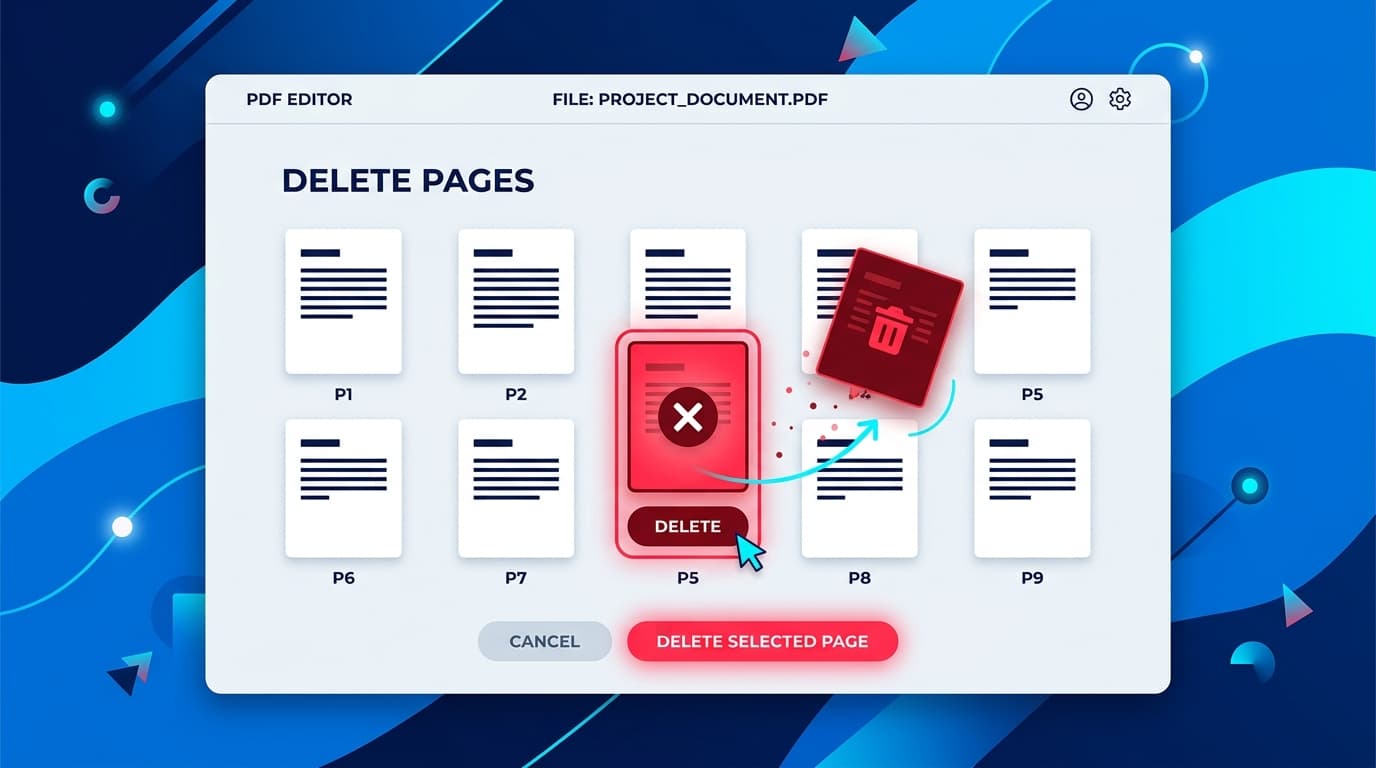
Need to remove unwanted, blank, or sensitive pages from a PDF document? Whether you are cleaning up a multi-page scanned contract, stripping outdated resume pages, or removing confidential figures before sharing, this complete guide covers the fastest, 100% free methods to delete PDF pages on any device without paying for Adobe Acrobat.
Why Do You Need to Delete Pages From a PDF?
PDF files are built to be rigid and unchangeable by default. However, real-world document management frequently requires removing specific pages:
- Removing Blank or Scanned Artifact Pages: Automatic document feeders (ADFs) frequently scan empty back sides of pages or feeder slip sheets that clutter the final digital packet.
- Protecting Confidential & Sensitive Information: Before sharing legal exhibits, financial statements, or tax packets, deleting confidential summary or banking pages protects your privacy.
- Downsizing Bloated Presentations: Removing unnecessary appendix pages or obsolete slide drafts reduces document size and keeps client presentations focused.
- Pruning Multi-Page Forms: Often government or tax forms include 10+ pages of instructions with only 2 actual submission pages needed.
Method 1: Free PDF Combine (Fastest, Local & 100% Private)
Most online PDF editors force you to upload your sensitive files to their cloud servers or demand costly subscriptions just to delete a single page. Free PDF Combine works completely inside your web browser using client-side JavaScript—meaning your files are processed locally on your computer and never sent over the internet.
Step-by-Step Instructions:
- Go to our Free PDF Split & Page Remover Tool.
- Drag and drop your PDF document into the upload zone (or click to browse your files).
- Choose the Custom Range mode.
- Enter the exact page numbers you wish to keep, omitting the pages you want to delete.Example: To remove page 3 and page 7 from a 10-page document, simply enter: 1-2, 4-6, 8-10
- Click Split & Download. Your cleaned PDF is generated instantly in your browser and saved to your device.
Privacy Guarantee: Because processing runs entirely in your local RAM, there are zero server uploads, no wait queues, no file size limits, and no email or account registration required.
Method 2: Google Chrome & Microsoft Edge (The "Print to PDF" Exclusion Trick)
If you are on a desktop computer without third-party software, modern web browsers like Google Chrome, Microsoft Edge, and Brave have a built-in printer driver that allows you to omit unwanted pages:
- Open your PDF file inside Google Chrome or Microsoft Edge (right-click the file → Open with → Google Chrome).
- Press Ctrl + P (Windows) or ⌘ + P (Mac) to open the print dialog.
- Under the Destination dropdown, choose Save as PDF (or Microsoft Print to PDF).
- In the Pages setting, change from "All" to Custom.
- Type the list of pages you want to retain (for instance, typing
1, 3-5will exclude page 2 and all pages after page 5). - Click Save and select the destination folder on your hard drive.
Method 3: Apple Preview (Built-in for Mac Users)
macOS includes one of the best PDF manipulation tools directly out of the box. Apple Preview lets you visually delete any page in seconds:
- Double-click your PDF file to open it in Preview on your Mac.
- Click the View Menu in the top menu bar → select Thumbnails (or press ⌥ + ⌘ + 2).
- In the left sidebar, click on the thumbnail of the page you want to delete. (Hold ⌘ Command to select multiple pages).
- Press the Delete key on your keyboard (or click Edit → Delete).
- Press ⌘ + S to save the updated PDF document.
Comparison of Page Deletion Methods
| Method | Speed | Privacy Level | Software Install | Best For |
|---|---|---|---|---|
| Free PDF Combine | Instant (< 2s) | 100% Local (0 Uploads) | None (Web) | Any Device / All OS |
| Chrome / Edge Print | Fast | 100% Local | Pre-installed Browser | Quick single-file extraction |
| macOS Preview | Fast | 100% Local | Built-in Mac App | Mac visual thumbnail deletion |
| Adobe Acrobat Pro | Moderate | Local / Cloud Sync | Paid ($239/yr) | Heavy enterprise publishing |
Frequently Asked Questions
Will deleting pages change the layout of the remaining pages?
No. Removing pages does not reflow or reformat the remaining pages. Fonts, vector shapes, embedded high-resolution graphics, and original page dimensions are preserved 100% intact.
Can I delete pages from a password-protected PDF?
If the document requires an open password, you must first enter the password to unlock it before removing pages. For permission-locked PDFs, client-side tools like Free PDF Combine can process the document once authenticated.