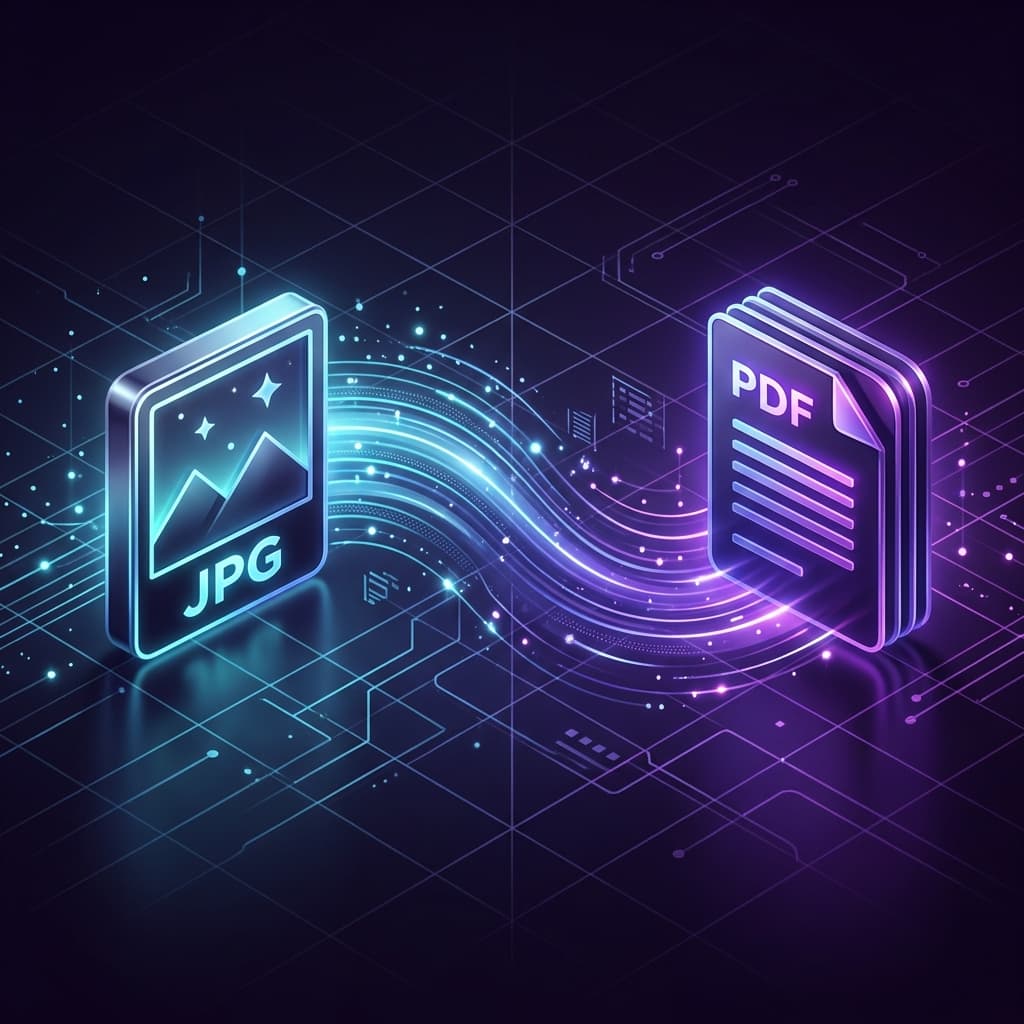
Need to turn receipts, photos, scanned certificates, or graphic mockups into a single clean PDF? Converting JPG and PNG images into a PDF ensures universal viewing, effortless printing, and easy email sharing. Learn the best free, secure ways to convert images to PDF without signups, watermarks, or file uploads.
Why Convert JPG Images to PDF?
While JPG is ideal for capturing photos, sharing raw image files creates distinct challenges:
- Multi-Page Bundling: You cannot email 20 separate JPG files without overwhelming recipients. A single PDF binds all images in sequential order.
- Consistent Print Scaling: Images often print at unpredictable sizes. PDF forces standard print margins (A4 or US Letter).
- Legal & Financial Archiving: Banks, courts, and universities accept PDF documents for document verification, not loose image files.
Method 1: Free PDF Combine (Instant Browser Conversion)
Our dedicated Free Image to PDF Converter runs entirely in your browser using HTML5 Canvas rendering. Zero bytes of your photos are ever uploaded to cloud servers.
Step-by-Step Walkthrough:
- Navigate to Image to PDF Converter.
- Drag and drop your JPG, JPEG, PNG, or WEBP images into the box.
- Drag image cards to reorder your pages into the desired sequence.
- Choose page orientation (Auto, Portrait, or Landscape) and margin preferences.
- Click Convert to PDF to generate and download your unified document instantly.
Method 2: Windows 10 & 11 Built-in File Explorer Trick
- Open File Explorer and select the JPG photos you want to convert.
- Right-click on the selected images → click Print.
- In the Printer dropdown menu, select Microsoft Print to PDF.
- Uncheck "Fit picture to frame" if you want to prevent photo cropping.
- Click Print → name your new PDF file and click Save.
Method 3: iPhone & iPad Photos to PDF Without Any App
- Open the Photos app on your iPhone or iPad.
- Tap Select in the top right → tap all photos you wish to include.
- Tap the Share icon (bottom left) → select Save to Files.
- Open the Files app, navigate to your saved photos folder.
- Long-press one photo (or tap 3 dots → Select multiple) → tap Quick Actions → Create PDF.
Frequently Asked Questions
Does converting JPG to PDF reduce image sharpness?
No. In our client-side converter, original image pixels are embedded directly into the PDF container without lossy re-compression, ensuring full image clarity.
Can I combine different image formats like PNG and JPG together?
Yes! You can mix JPG, PNG, WEBP, and BMP images in a single session. They will all be stitched into the same multi-page PDF seamlessly.