Struggling to decide whether to save your document as an Adobe Portable Document Format (PDF) or a Microsoft Word (.DOCX) file? Choosing the wrong format can cause unexpected formatting disasters, font mismatches, or security vulnerabilities. This comprehensive guide breaks down the core architecture, security capabilities, and exact use cases for both formats.
The Fundamental Architectural Difference
To understand when to use each format, you must understand how they render text and graphics under the hood:
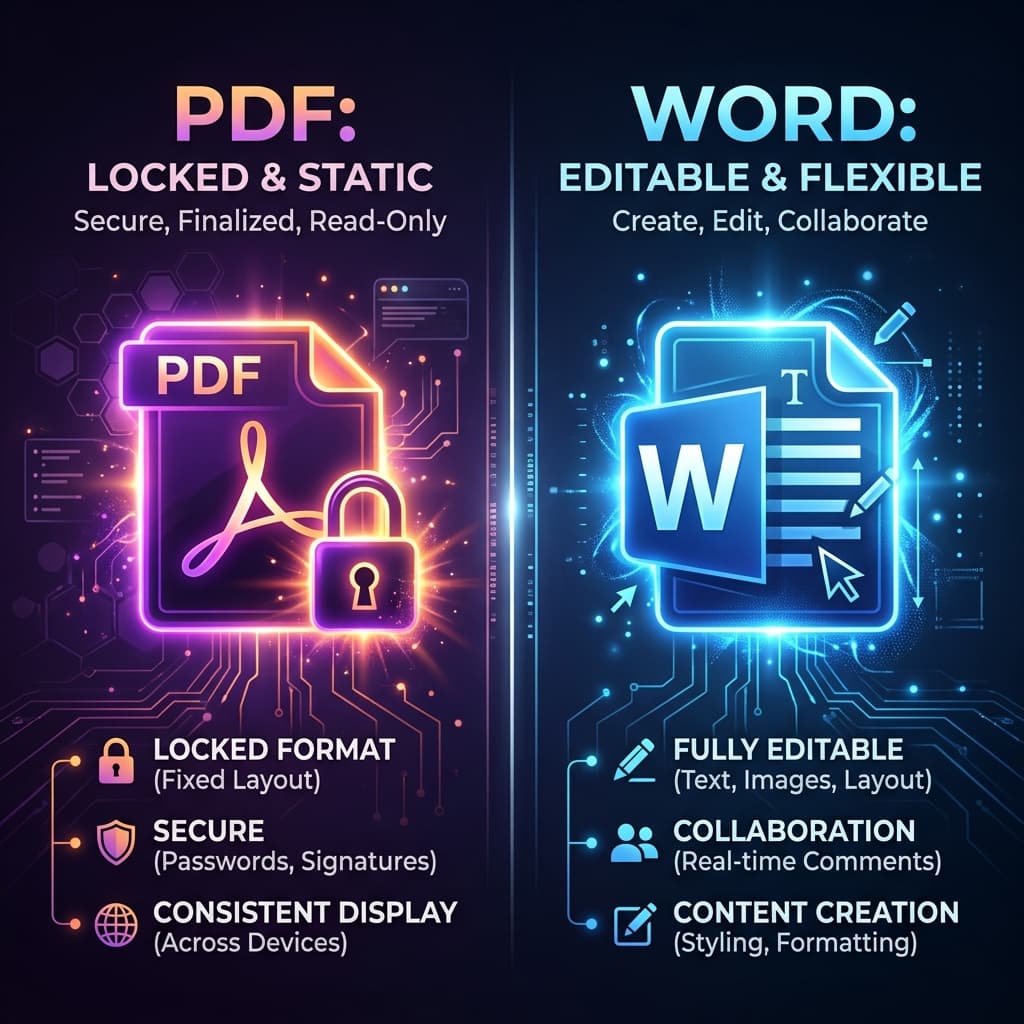
PDF: Fixed Layout Model
PDFs are electronic digital prints. Every letter, image, and vector curve is locked into an exact geometric coordinate (X, Y) on the page. Whether opened on a Windows PC, Mac, iPhone, Android, or printed on paper, a PDF will look 100% identical down to the millimeter.
Word (DOCX): Reflowable Stream Model
DOCX is an XML-based document authoring model. Content flows dynamically based on the software, screen size, default printer margins, and local fonts installed on the recipient's computer. If the recipient does not have your exact font, Word substitutes it, often shifting page numbers and tables.
Feature Comparison: PDF vs. Microsoft Word
| Feature / Capability | PDF (.pdf) | Microsoft Word (.docx) |
|---|---|---|
| Layout Fidelity | 100% Fixed (Universal) | Variable (May shift across devices) |
| Editing & Authoring | Difficult (Rigid structure) | Effortless (Full word processing) |
| Digital Signatures & Legal Validity | Cryptographically Sealed (eIDAS/ESIGN) | Basic (Easily modified) |
| Font Embedding | Embedded by default | Requires recipient to have fonts |
| File Size & Compression | High (Vector compression & downsampling) | Moderate (Can bloat with media) |
| Multi-Page Merging | Instant via Free PDF Combine | Requires manual copy-paste |
When You Should ALWAYS Use PDF
- Resumes and CVs: Sending a Word doc risks formatting misalignment on recruiter screens. Always submit resumes in PDF.
- Legal Contracts and NDAs: Ensures clauses cannot be casually edited and guarantees digital signature integrity.
- Invoices, Receipts & Quotes: Locks in numerical values and professional branding across all accounting software.
- Design Portfolios & Presentations: Maintains exact font kerning, vector illustration sharp edges, and high-DPI imagery.
- Final Project Submissions: Prevents professors or clients from seeing red spelling underlines or tracked revision notes.
When You Should Use Microsoft Word
- Drafting and Content Creation: Brainstorming, outlining, and writing initial document drafts.
- Collaborative Team Editing: Using Track Changes, live cursor co-authoring, and inline comment threads.
- Reusable Form Templates: Documents where team members need to fill in text blocks repeatedly.
Frequently Asked Questions
Can a PDF be converted back to a Word document?
Yes. Software with Optical Character Recognition (OCR) can parse text and tables from PDFs back into editable DOCX files, though complex layouts may require manual spacing adjustments.
Is PDF safer against malware than Word documents?
Generally yes. Microsoft Word files can execute embedded VBA macros that may contain malicious code. Modern browser PDF viewers run inside strict sandboxes that disable unsafe executable scripts.