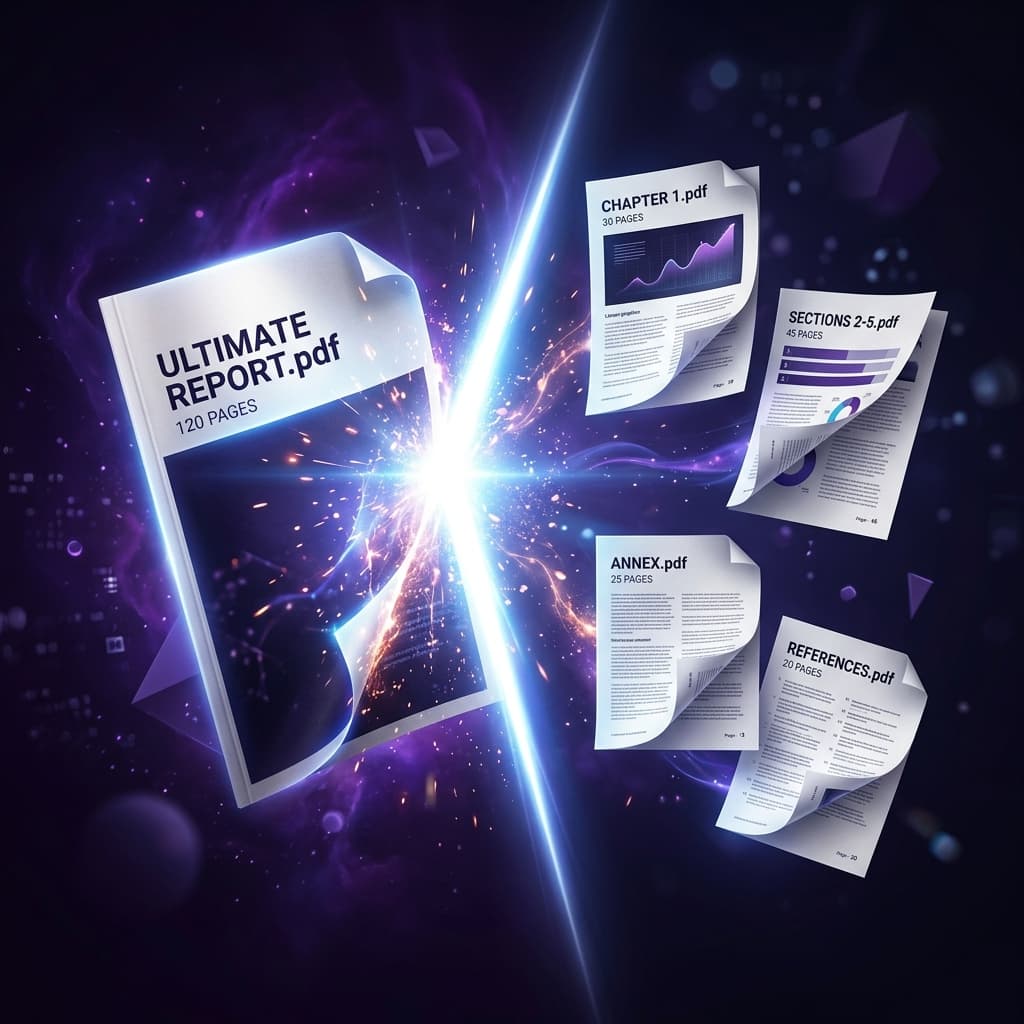
Need to extract specific chapters from an ebook, separate individual invoice pages, or divide a 100-page scanned document into manageable sections? Learn the fastest, free methods to split PDF files into separate documents without file size limits or privacy leaks.
The 3 Modes of Splitting a PDF
1. Burst Extraction
Splits every single page into its own individual PDF file.
2. Custom Range Split
Extracts specified page groupings, such as 1-5, 8, 12-20 into separate documents.
3. Fixed Interval Split
Splits every N pages into dedicated equal-sized PDF packets.
Method 1: Free PDF Splitter (Browser-Based & Private)
- Navigate to Split PDF Tool.
- Drag and drop your document into the upload zone.
- Choose your splitting mode and enter your range (e.g.
1-3, 5-8). - Click Split PDF → download your cleanly partitioned PDF files instantly.
Method 2: Google Chrome Print Filter
- Open the PDF in Chrome → press Ctrl + P / ⌘ + P.
- Set Destination to Save as PDF → Pages to Custom (e.g.
5-10) → click Save.